Brief CCD overview
Here's a quick overview of CCD, the software that ships with the Envi EnView SL-35.
Opening a session
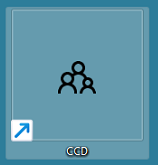
- Open the CCD application via this desktop icon:
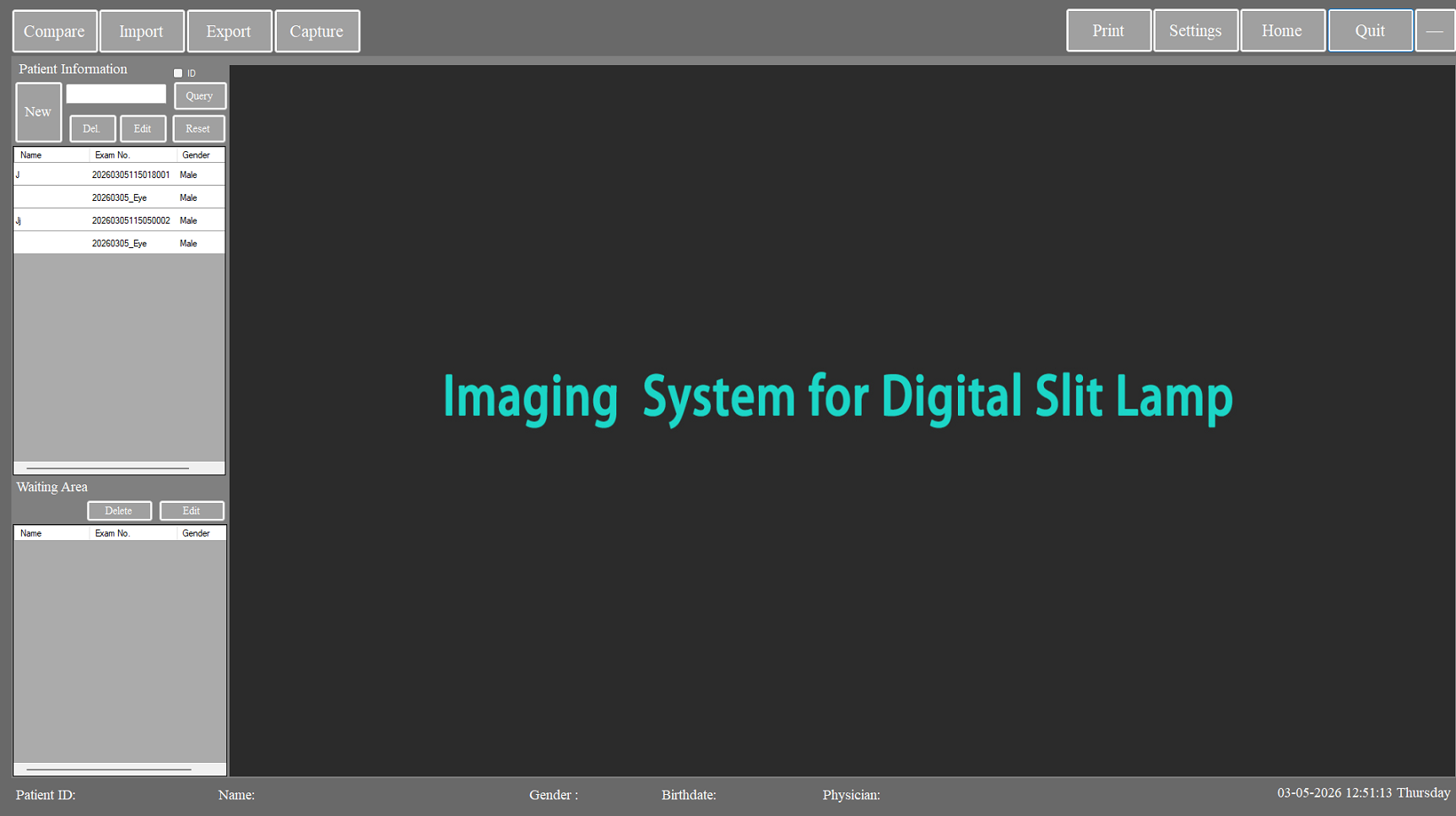
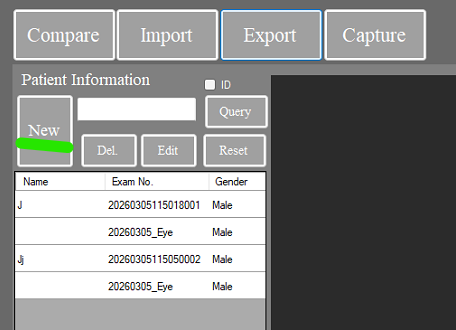
- The homescreen appears. Choose New.
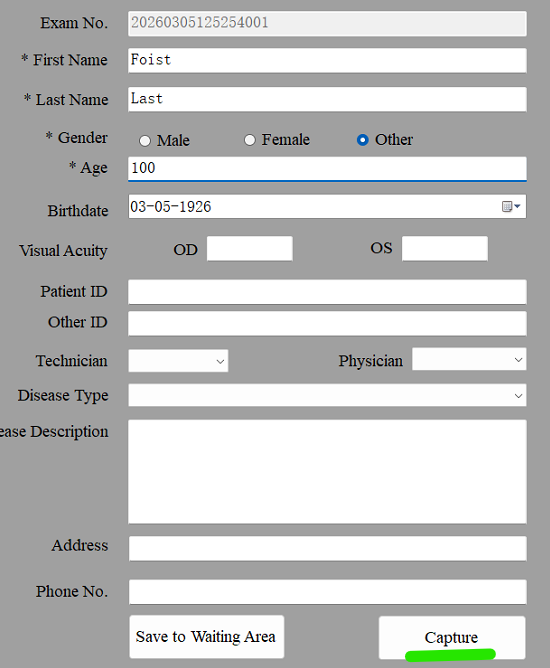
- Enter data for first name, last name, gender, and age fields and choose Capture.
- The Capture window appears. Welcome back to 1995.
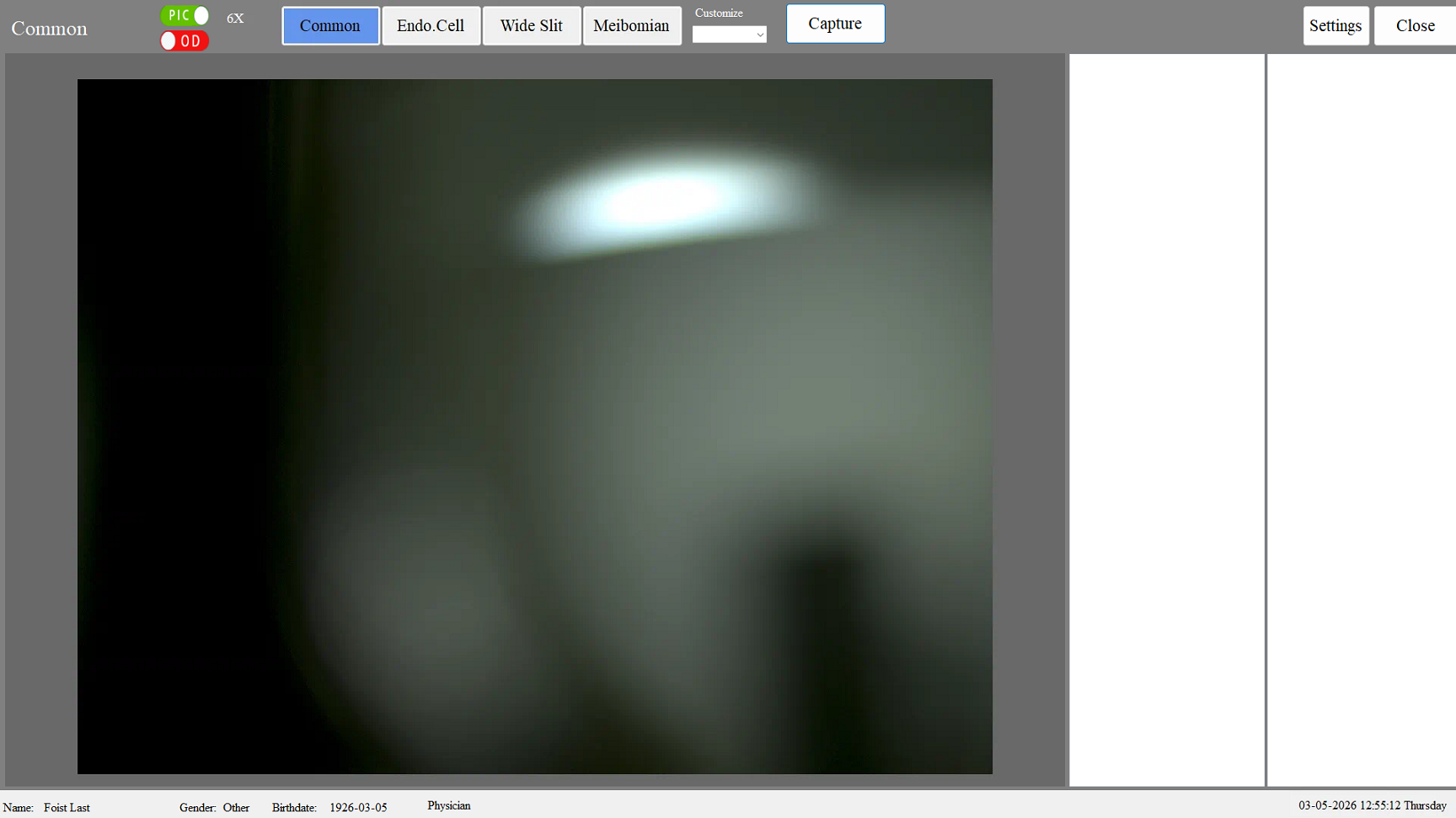
- The PIC/VIDEO switch toggles between modes. Laterality updates automatically according to the unit's position. The Capture button captures images, while the Record button shoots video until the End button is pressed.



- Images accrue in the side column. There is no Select/Deselect all option, but marquee selection (click & drag) works.
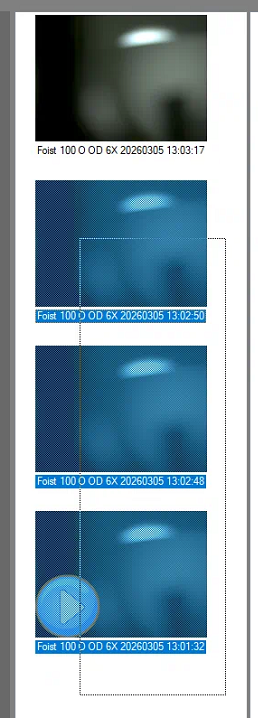
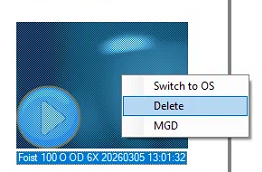
- Right clicking an image will allow you to delete an image (or a range of images). You can also swap laterality.
- When you are finished capturing imagery, press the Close button. (Export happens afterward.)
Exporting data
- Upon completion of a capture session, a special portion of the Home screen - the exam summary - appears. The list on the left allows you to open the same view for any other patient as well, in case photos need to be re-exported at any time.) No mass select/de-select options exist here either, but marquee selection works.
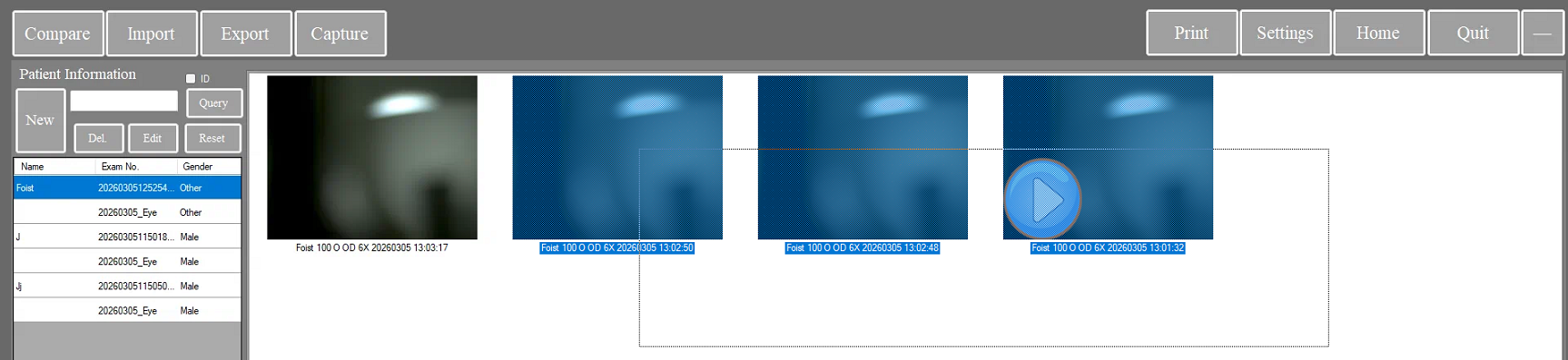
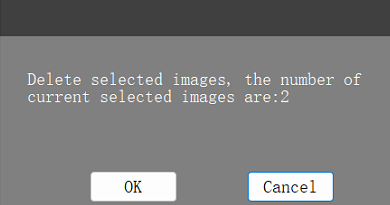
- Right-clicking a photo displays a delete dialog box.
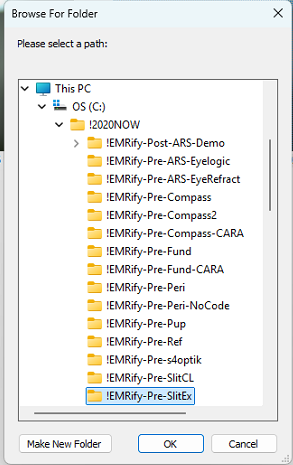
- To export, highlight the images and videos you wish to save and press Export. When the Browse for Folder popup appears, you may simply press OK, as the default path will already be set.
Minimizing the app
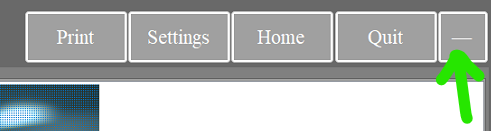
If you ever need to minimize the app, use this button in the top right corner of the window.
Article Updated on 03/05/2026

Note: This document and any attached materials (or program, etc.) are confidential and proprietary and constitute the sole property of 20/20 Vision Center, LLC and 20/20NOW Eye Exams, PC.. This document and any attached materials (or program, etc.) are intended solely for the recipient and no portion thereof may be reproduced, forwarded, distributed, or otherwise disclosed in any manner to any third party without the express prior written consent of 20/20 Vision Center, LLC and 20/20NOW Eye Exams, PC. © 2017 by 20/20 Vision Center, LLC. All rights reserved.
Was this article helpful?
That’s Great!
Thank you for your feedback
Sorry! We couldn't be helpful
Thank you for your feedback
Feedback sent
We appreciate your effort and will try to fix the article