1. Plug a keyboard and mouse into AFC-330.
2. Enter settings by tapping the "solar system" button, followed by tapping the second solar system button that appears.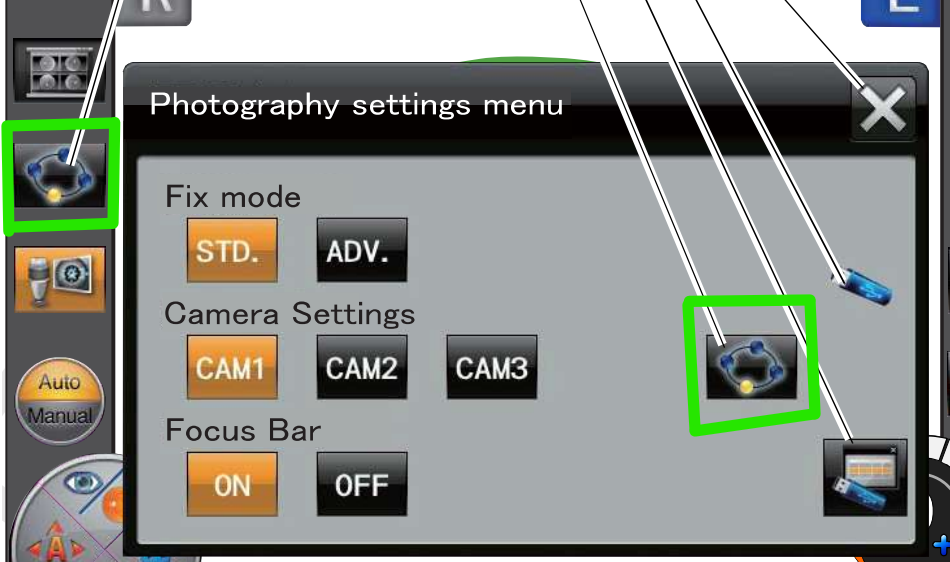
3. The "Control Menu" opens. Navigate to Page 2 and choose Transfer.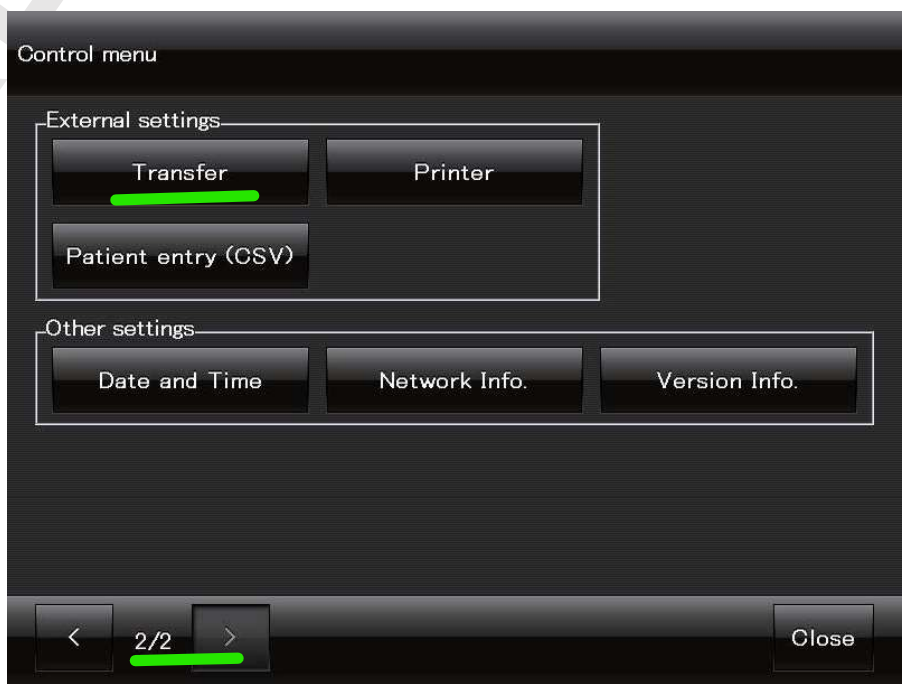
4. Set the following settings:
A. Transfer to: LAN
B. Auto transfer: On
C. Auto print: Off
D. Connect LAN to: File
E. Transfer image caption: Off
F. USB backup transfer: Off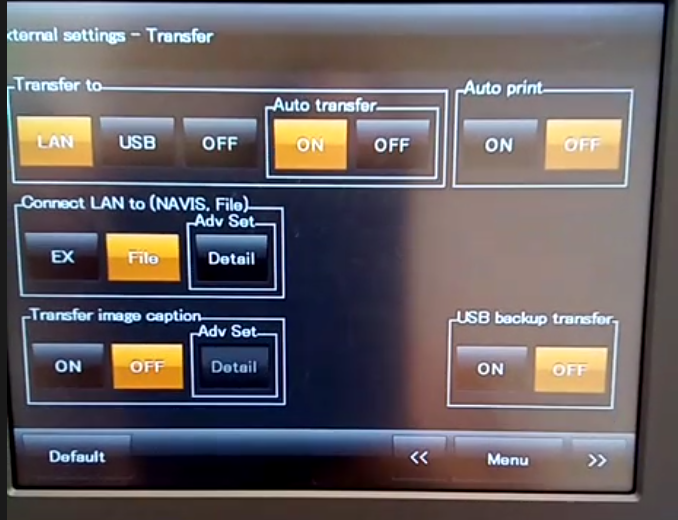
5. Under the "Connect LAN to..." heading, press Detail.
6. When the "Connect LAN to..." Detail page appears, press the Windows logo key on the keyboard.
7. Start typing "File Explorer" and click the File Explorer icon when it appears.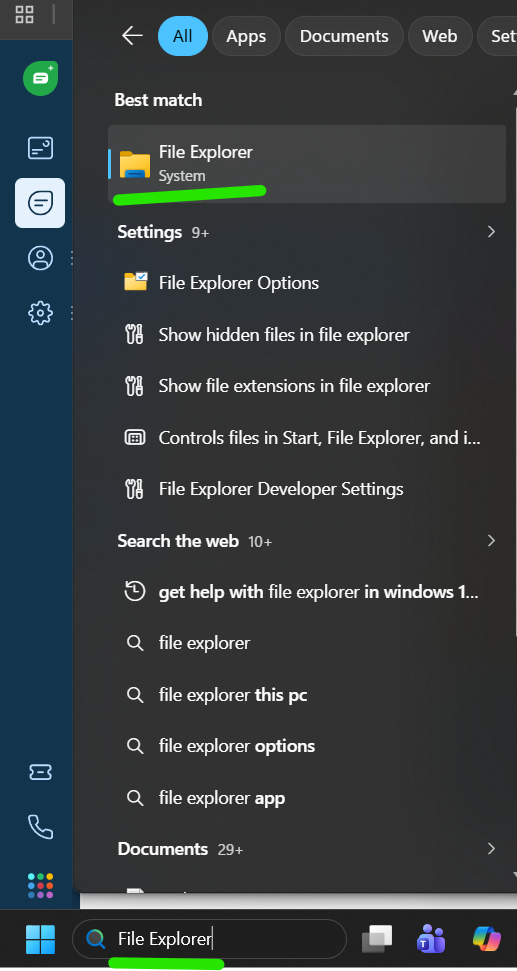
8. Right click "This PC" and choose "Map Network Drive".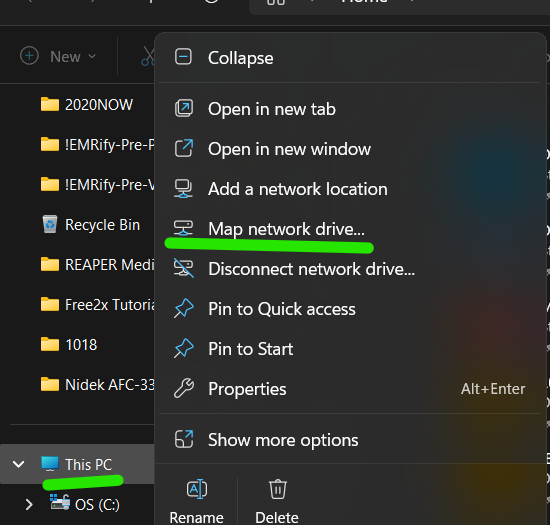
9. On the Map Network Drive screen, set Drive to Z: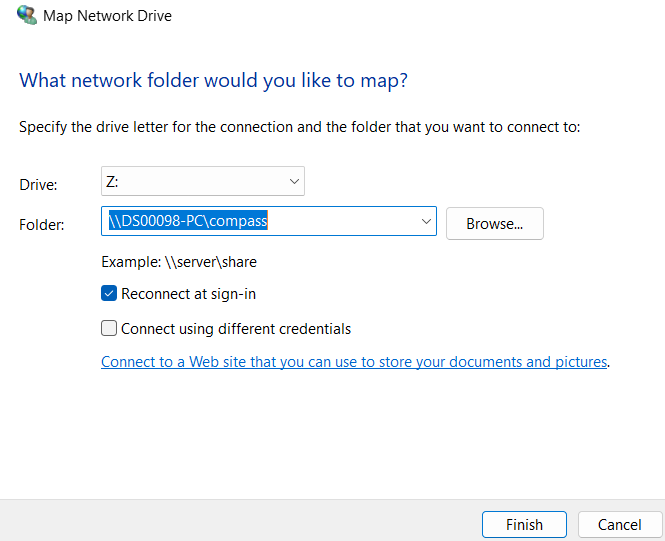
10. For folder, type the following:
\\DSxxxxx-PC\compass (Use the store DS number. For example, DS00518-PC)
11. Press Finish.
12. The Enter network credentials screen appears. Check the box labeled "Remember by credentials".
13. Enter the following credentials and tap OK:
Username: dsxxxxx (Use the store DS number. For example, DS00518)
Password: (PC password)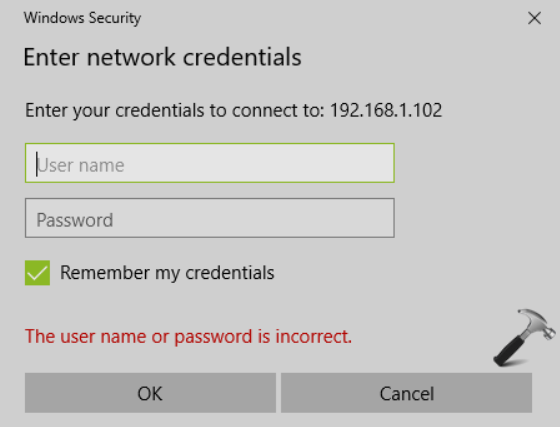
14. Return to the "Connect LAN to..." Detail page.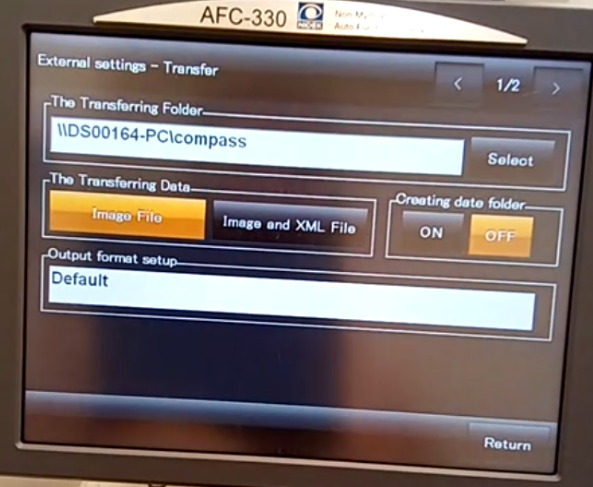
15. In the field labeled "The Transferring Folder", type this: \\DSxxxxx-PC\compass (Use the store DS number. For example, DS00518-PC)
16. Set the following settings
The Transferring Data: Image File
Creating date folder: Off
Output format setup: Default
17. Use the return buttons to return to the main screen.
18. Perform a sample export.
If you have any questions you can email ITSupport@for2020now.com
Article Updated on 05/02/2026

Note: This document and any attached materials (or program, etc.) are confidential and proprietary and constitute the sole property of 20/20 Vision Center, LLC and 20/20NOW Eye Exams, PC.. This document and any attached materials (or program, etc.) are intended solely for the recipient and no portion thereof may be reproduced, forwarded, distributed, or otherwise disclosed in any manner to any third party without the express prior written consent of 20/20 Vision Center, LLC and 20/20NOW Eye Exams, PC. © 2017 by 20/20 Vision Center, LLC. All rights reserved.
Was this article helpful?
That’s Great!
Thank you for your feedback
Sorry! We couldn't be helpful
Thank you for your feedback
Feedback sent
We appreciate your effort and will try to fix the article