What the Ingenico link 2500 looks like
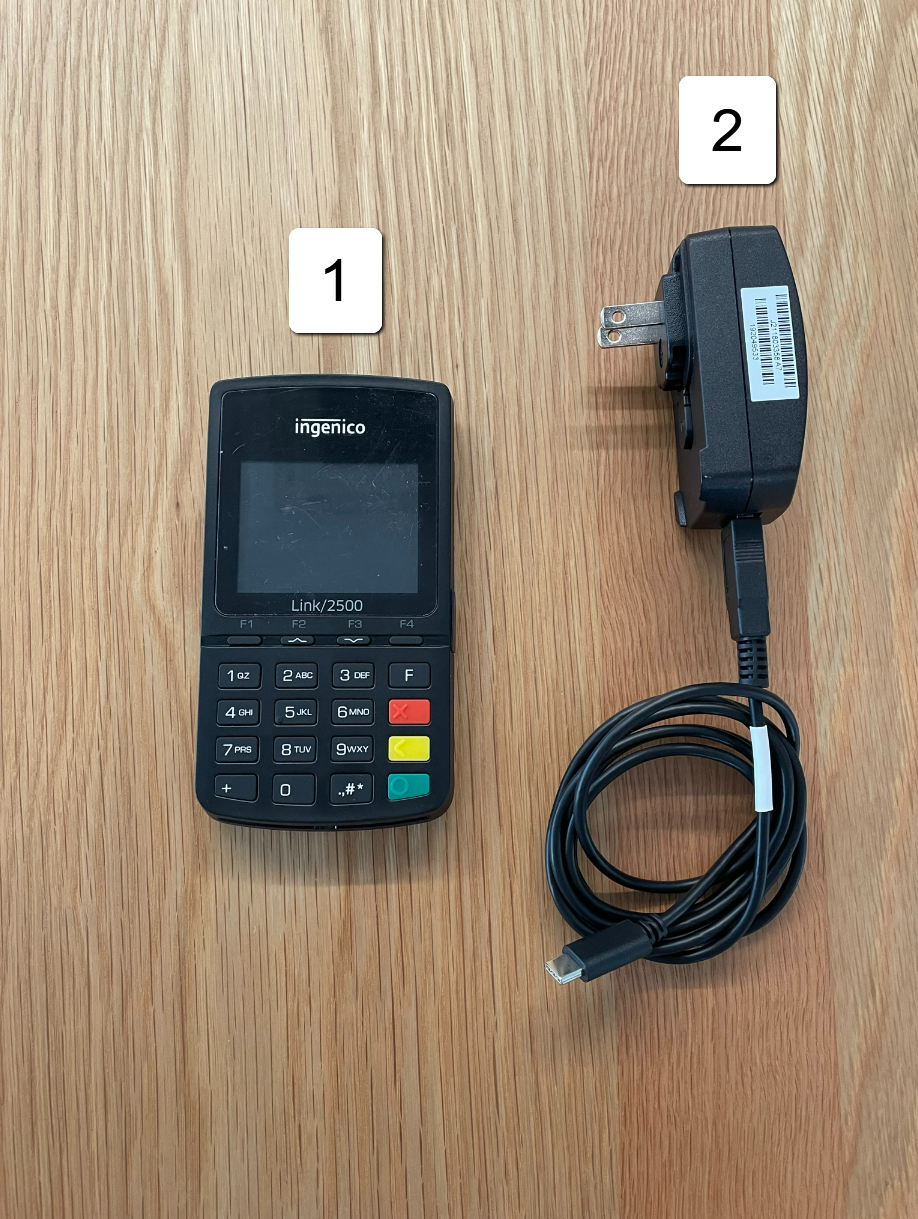
1) Terminal 2) Power Cable
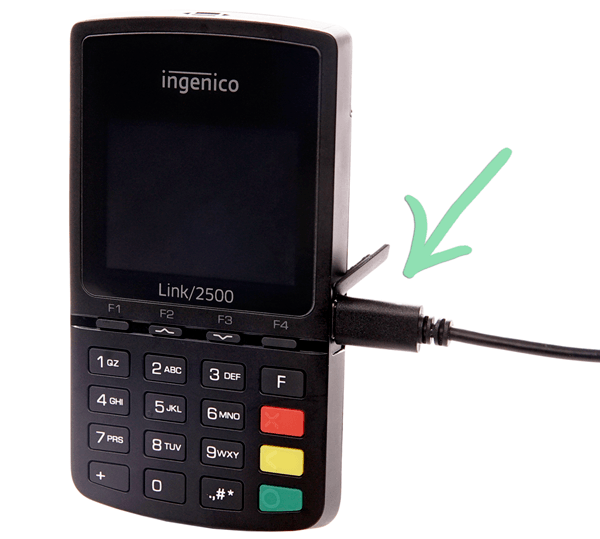
Cable goes into USB-C port on right hand side of terminal
To connect unit to WiFi
- On the triPOS screen, 0001 and it will open an Admin Menu
- Press 2 on the Numpad to select WiFi parameters
- Press 2 for Scan Networks
- The 2020Now_2GHz/5GHz will appear, select either
- Enter Wi-Fi password
This can be done old school texting style by repeatedly tapping the numbers for the appropriate letters
Once the password is entered (Password is case sensitive) the device will show "New Profile OK"
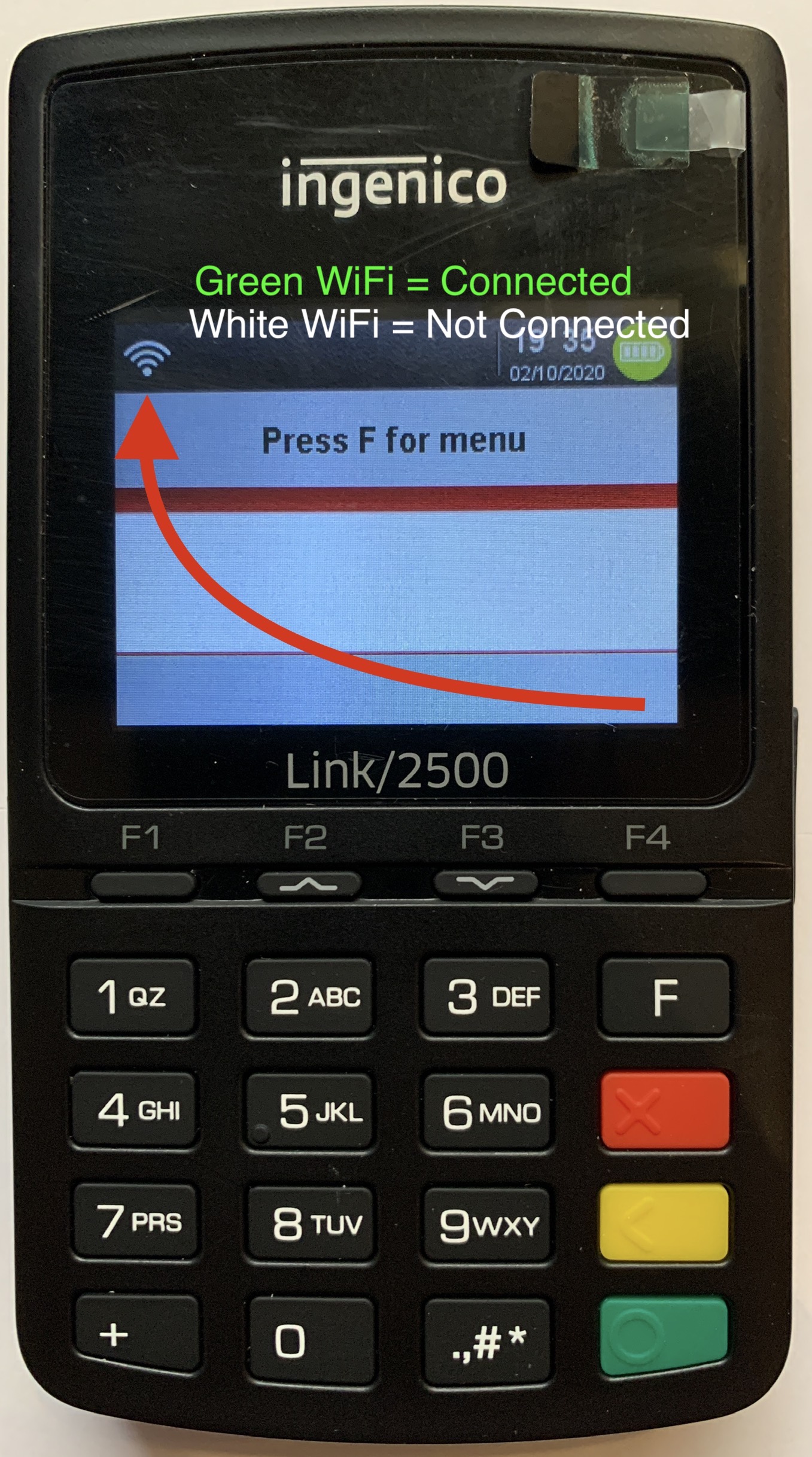
It will prompt back to the triPOS screen where the Wi-Fi icon on the top left will be green
Reboot
To reboot/restart unit must be connected to power cable
- Press and hold the hashtag (#) and yellow (<) button
- Screen will say 'Restart in Progress'
- Unit should beep, if not you can let go of both buttons once the screen flashes a few times
- Unit will begin to boot up into the TriPos Screen
Shutdown
To power down, unit must be disconnected from power cable
- Press and hold the hashtag (#) and yellow (<) button
- Screen will say 'Shutdown in Progress'
- Once it reaches a black screen you can let go of both buttons
- Press the green (O) button to power unit back on
If you have any questions you can email ITSupport@for2020now.com
Article Updated on 01/14/2026

Note: This document and any attached materials (or program, etc.) are confidential and proprietary and constitute the sole property of 20/20 Vision Center, LLC and 20/20NOW Eye Exams, PC.. This document and any attached materials (or program, etc.) are intended solely for the recipient and no portion thereof may be reproduced, forwarded, distributed, or otherwise disclosed in any manner to any third party without the express prior written consent of 20/20 Vision Center, LLC and 20/20NOW Eye Exams, PC. © 2017 by 20/20 Vision Center, LLC. All rights reserved.
Was this article helpful?
That’s Great!
Thank you for your feedback
Sorry! We couldn't be helpful
Thank you for your feedback
Feedback sent
We appreciate your effort and will try to fix the article