Components
The Cellview Widefield fundus camera connects to a PC running Cellview's client application software on Windows 10/11. The PC will always have a keyboard, mouse, and monitor attached, and serves as the primary UI necessary to operate the device.
The device can export JPEG (.jpeg),
Setup
1. Connect the Cellview PC to the same network where the refraction PC resides (20/20NOW, tmw222, etc.)
2. Map a network drive to the refraction PC's compass fileshare.
⭐ Note: Here is where you can put a tip that you want to stand out. You can also always link to another article for the person to read. Export
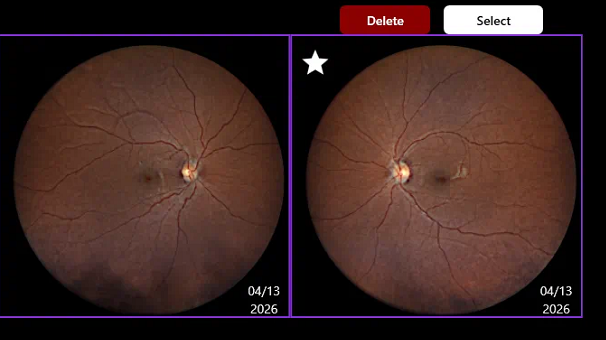 2. Press Export.
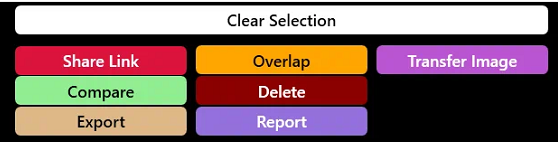 3. A preview window appears. Choose Export in JPEG.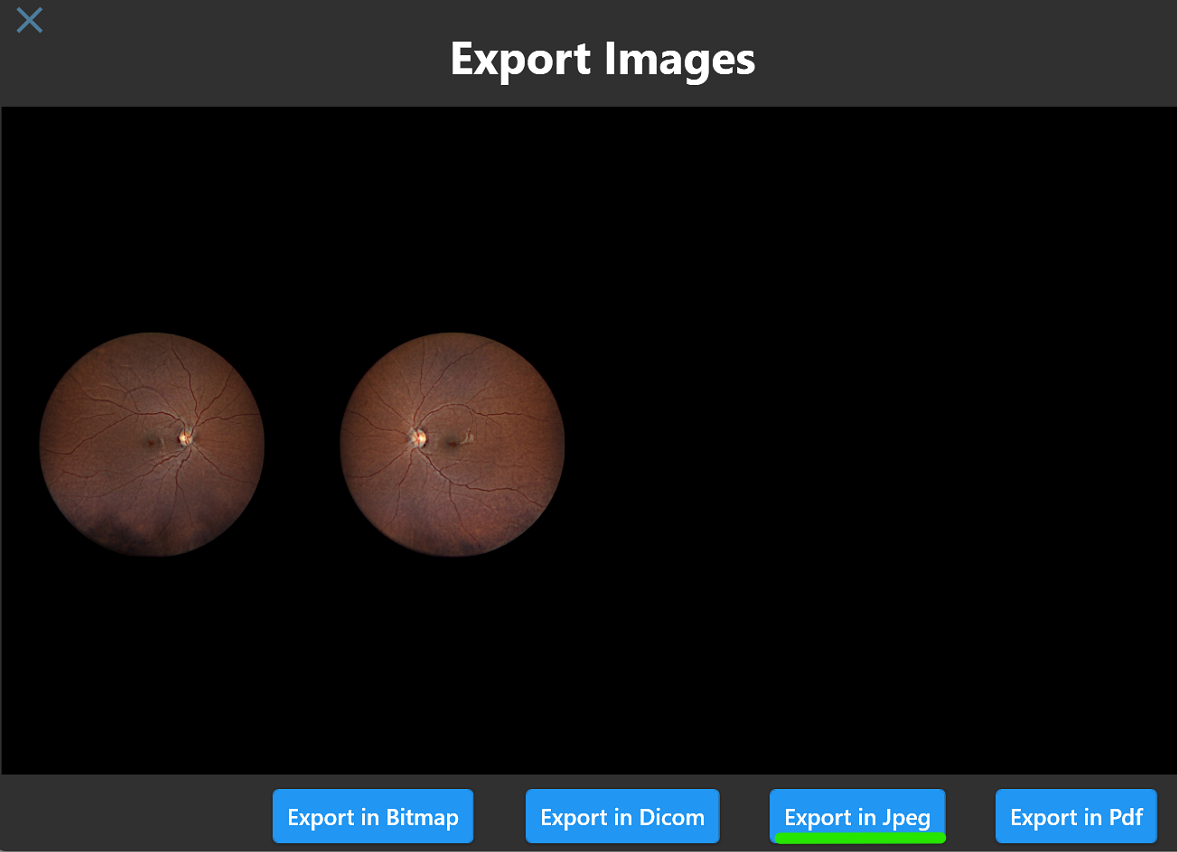
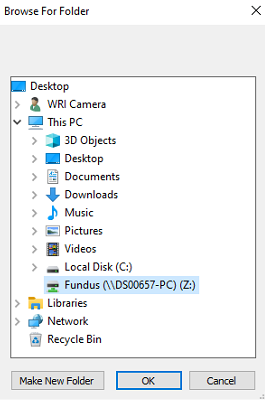
If you have any questions you can email ITSupport@for2020now.com
Article Updated on 04/15/2026

Note: This document and any attached materials (or program, etc.) are confidential and proprietary and constitute the sole property of 20/20 Vision Center, LLC and 20/20NOW Eye Exams, PC.. This document and any attached materials (or program, etc.) are intended solely for the recipient and no portion thereof may be reproduced, forwarded, distributed, or otherwise disclosed in any manner to any third party without the express prior written consent of 20/20 Vision Center, LLC and 20/20NOW Eye Exams, PC. © 2017 by 20/20 Vision Center, LLC. All rights reserved.
Was this article helpful?
That’s Great!
Thank you for your feedback
Sorry! We couldn't be helpful
Thank you for your feedback
Feedback sent
We appreciate your effort and will try to fix the article