When network issues prevent a Topcon TRC-NW500 from communicating with a destination PC, the camera ceases to function, and comprehensive exams are halted. This article outlines:
A. how to configure the TRC-NW500 unit to export to a flash drive, and
B. how to transfer the images to EMR.
A. One-time setup
First, contact IT Support on Workflow and let us know what's happening. This will grant us the opportunity to install an imoportant file (TRC-NW500-Poller.exe) on your system.
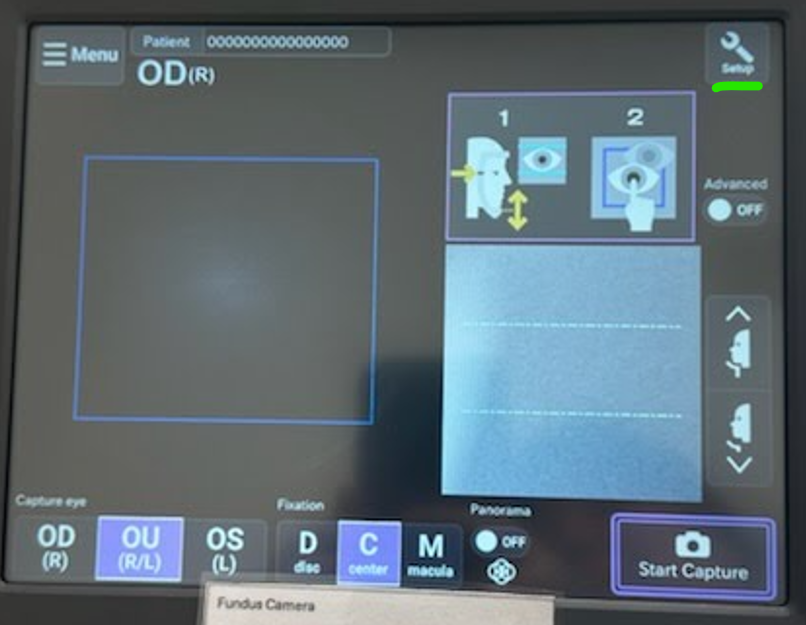
1. Hold the Setup button for a few seconds until a password prompt appears.
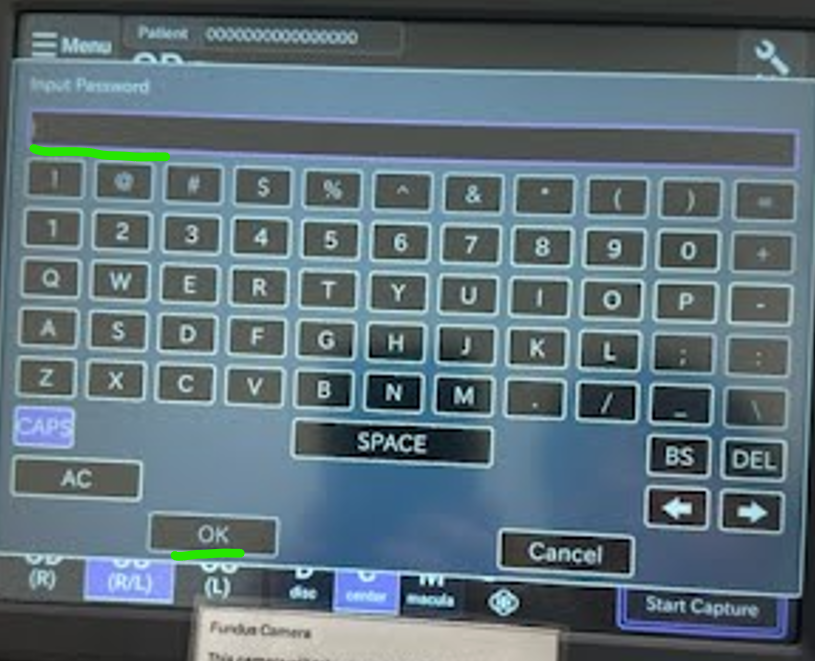
2. In the password field, enter the serial number on the bottom-left side of the device and tap OK.
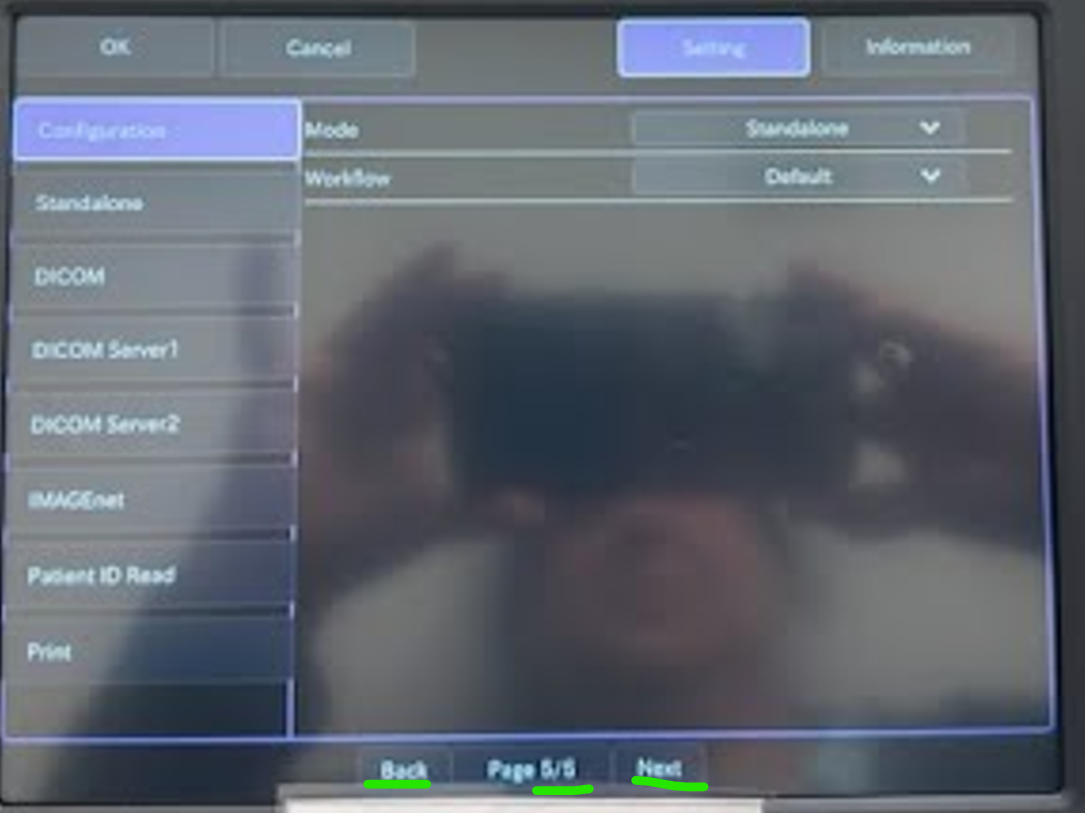
3. Use the Prev/Next buttons to navigate to Page 5.
4. Tap the Standalone tab.
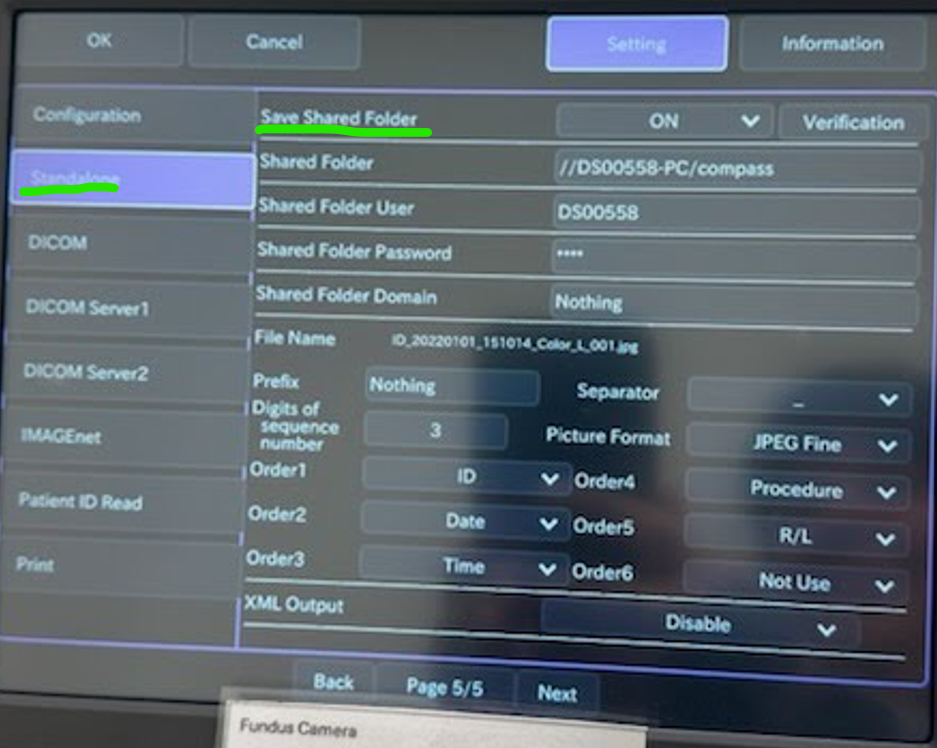
5. In the Save Shared Folder dropdown, choose OFF.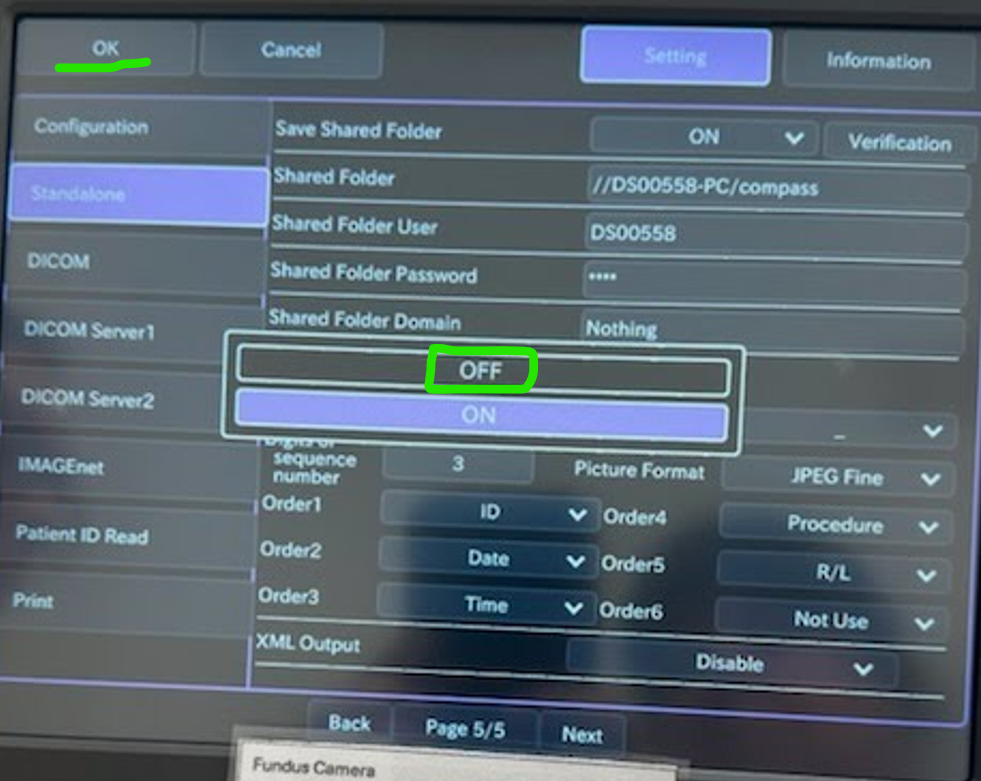
6. Tap OK in the top-left corner to exit.
7. The main screen appears. Your device is now ready to use the flash drive!
B. How to use
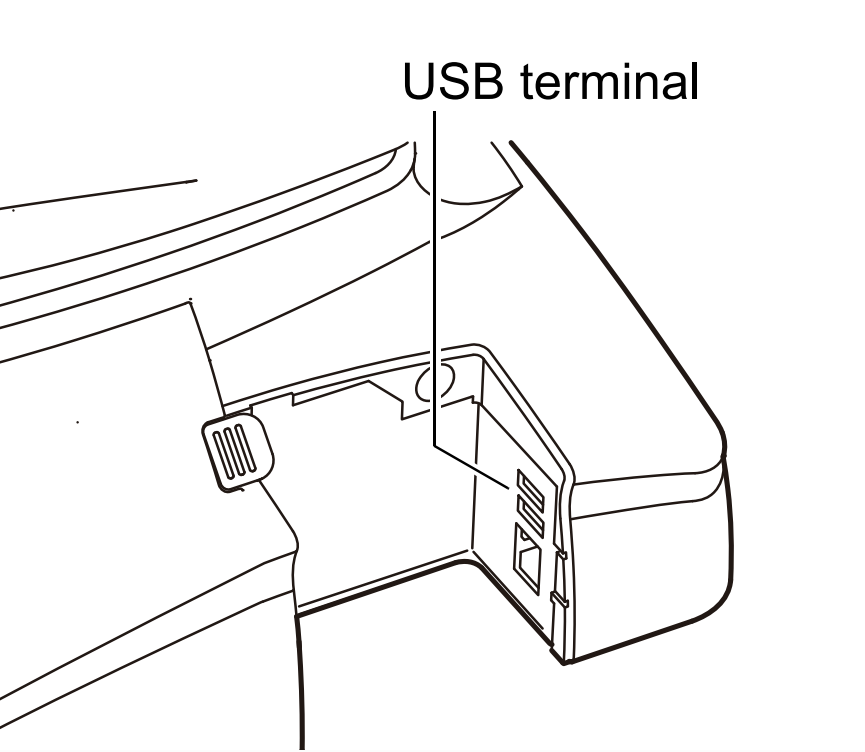
1. Insert flash drive into either USB port on the TRC-NW500 unit.
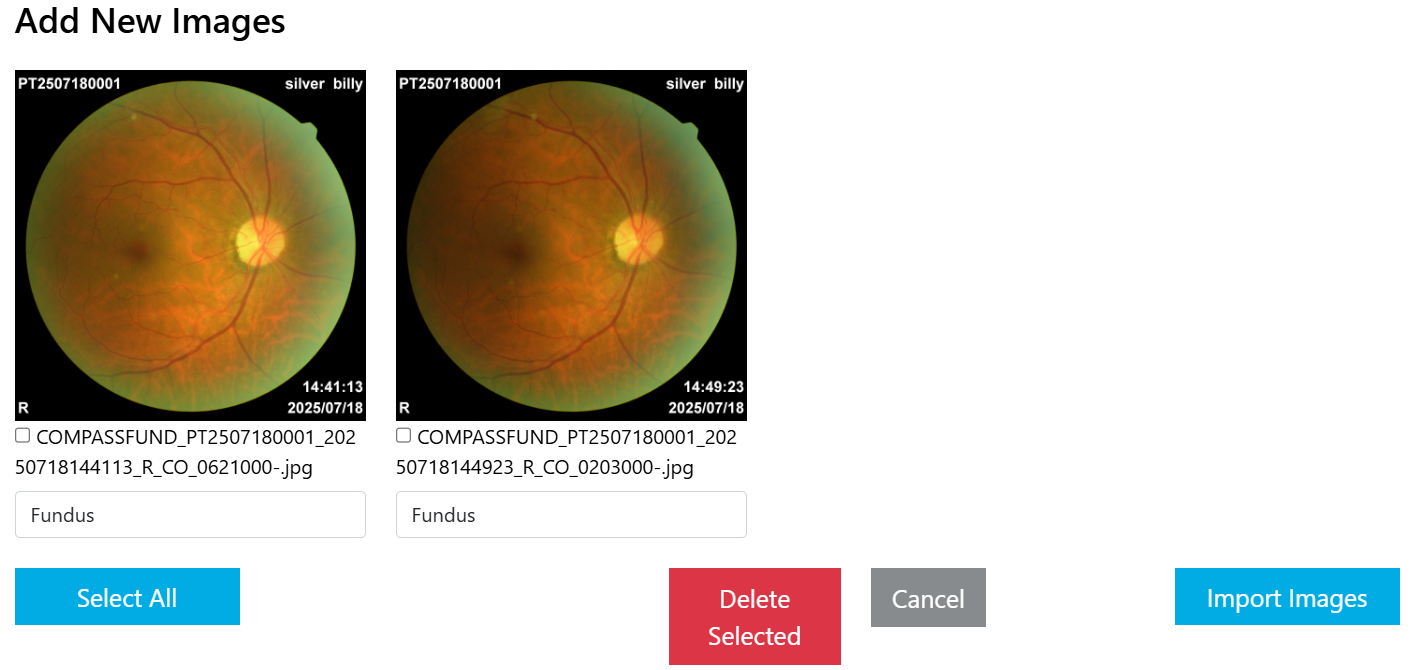
2. Take photos as normal.
3. Tap USB Info.

4. Tap USB Removal and remove the flash drive from the device.

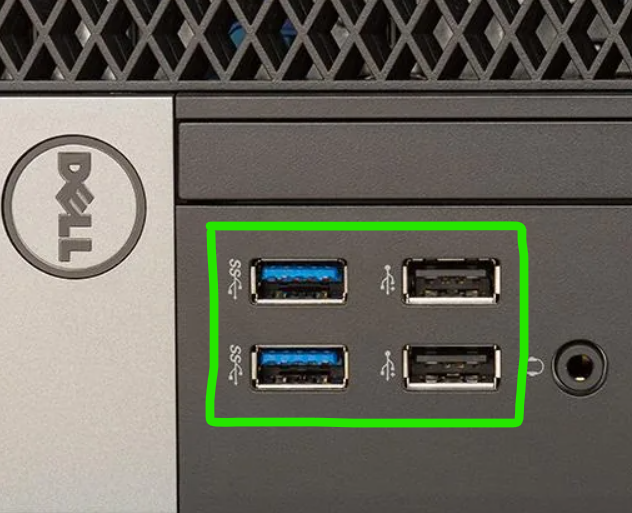
5. Plug the flash drive into one of the front ports on the refraction PC. If you see any error message prompts asking you to scan the drive, you can ignore them.
6. Wait about 40 seconds for the upload to occur (it happens automatically). When the transfer is complete, the drive will automatically safely eject.
⭐ Note: It doesn't actually physically disconnect. That'd be cool, though.7. Attach them in EMR like usual!
If you have any questions you can email ITSupport@for2020now.com
Article Updated on 07/21/2025

Note: This document and any attached materials (or program, etc.) are confidential and proprietary and constitute the sole property of 20/20 Vision Center, LLC and 20/20NOW Eye Exams, PC.. This document and any attached materials (or program, etc.) are intended solely for the recipient and no portion thereof may be reproduced, forwarded, distributed, or otherwise disclosed in any manner to any third party without the express prior written consent of 20/20 Vision Center, LLC and 20/20NOW Eye Exams, PC. © 2017 by 20/20 Vision Center, LLC. All rights reserved.
Was this article helpful?
That’s Great!
Thank you for your feedback
Sorry! We couldn't be helpful
Thank you for your feedback
Feedback sent
We appreciate your effort and will try to fix the article