How to export Topcon SL-D2 images via EZCapture
1. When you are finished taking pictures, click the ALL IMAGES tab.
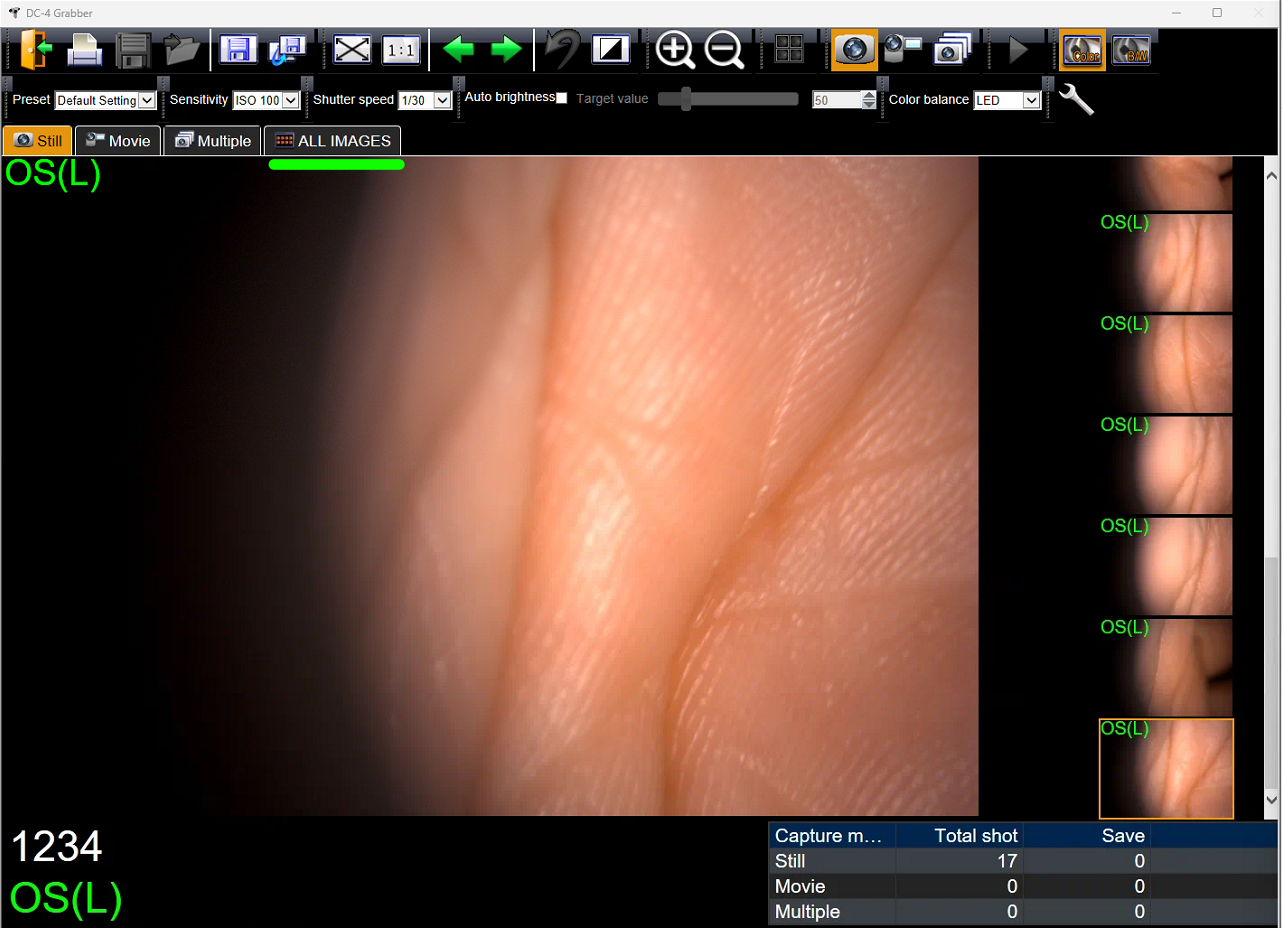
2. A list of all images taken during the session will appear.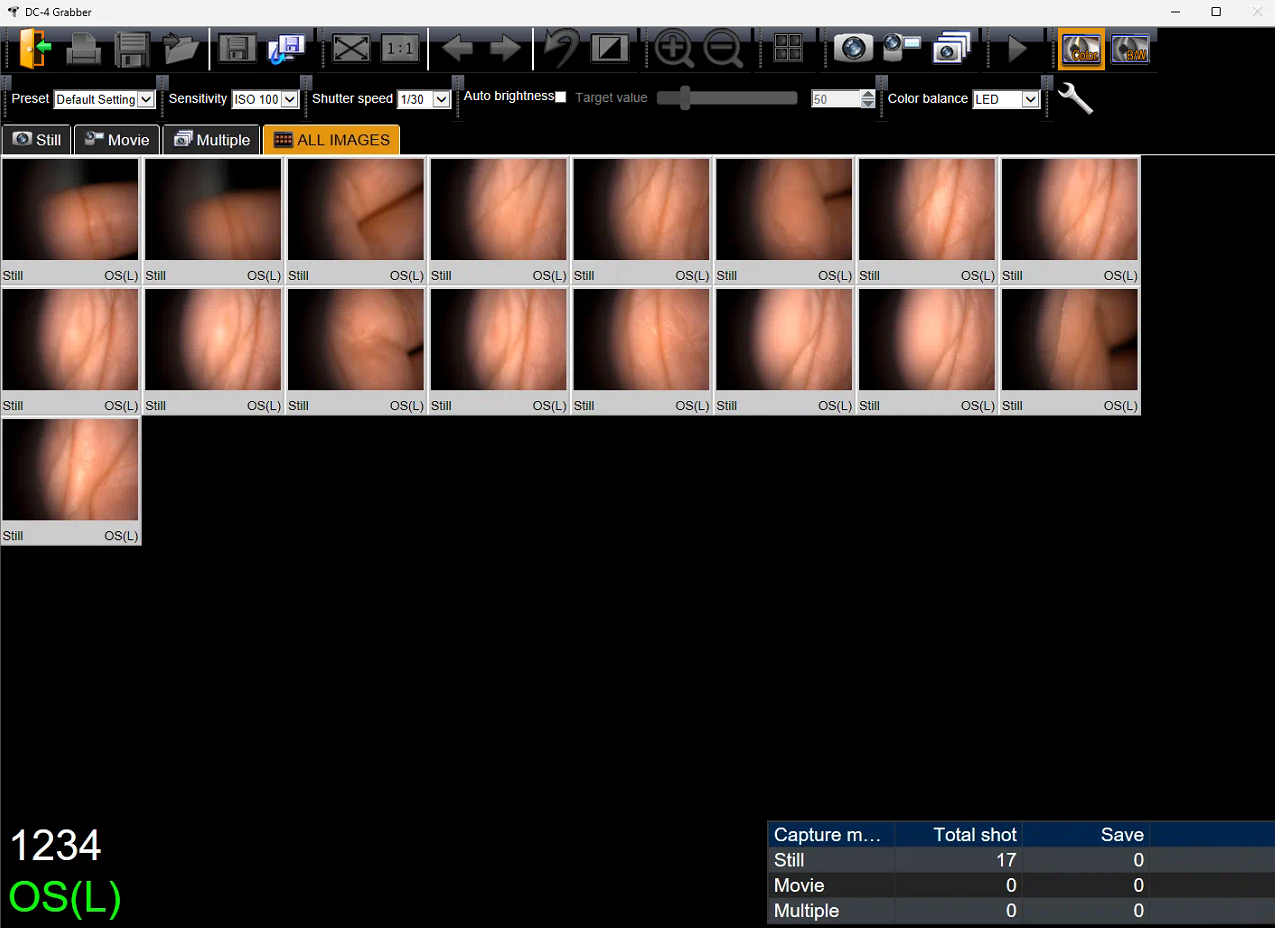
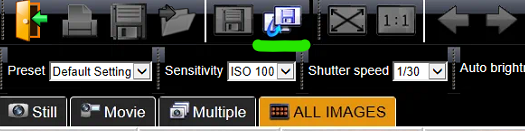
3. Press the "Select All" button.
4. Each image will now feature a "SAVE" badge in the bottom-left corner.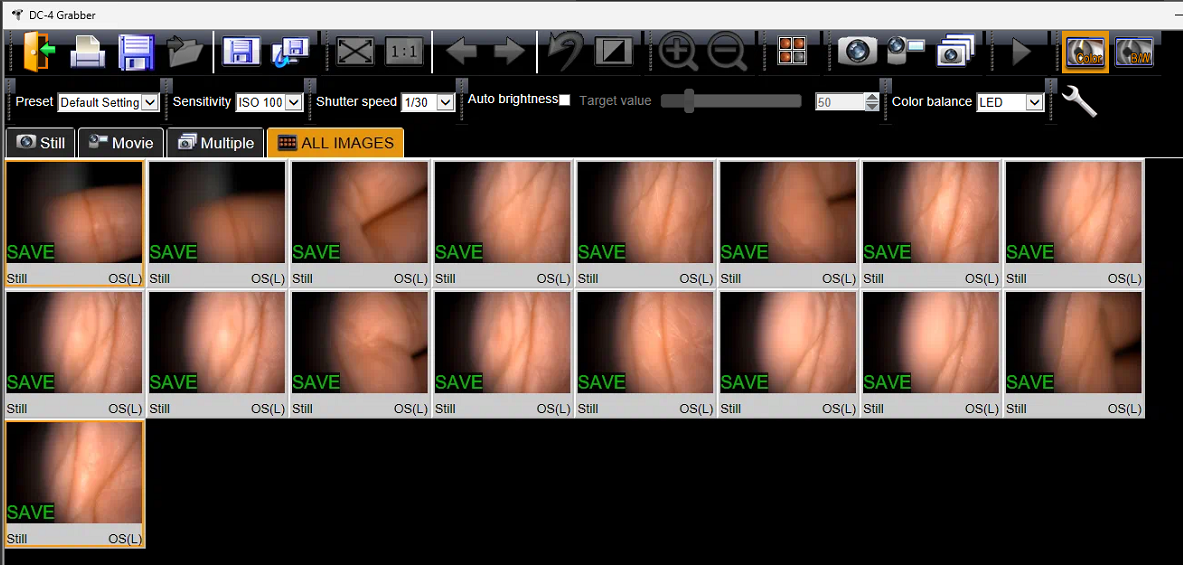
5. Press the Save button.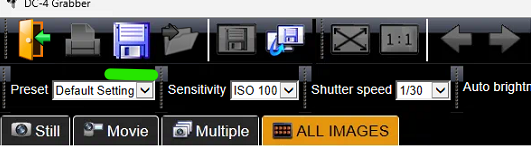
6. You may now attach the images in EMR!
If you have any questions you can email ITSupport@for2020now.com
Article Updated on 02/19/2026

Note: This document and any attached materials (or program, etc.) are confidential and proprietary and constitute the sole property of 20/20 Vision Center, LLC and 20/20NOW Eye Exams, PC.. This document and any attached materials (or program, etc.) are intended solely for the recipient and no portion thereof may be reproduced, forwarded, distributed, or otherwise disclosed in any manner to any third party without the express prior written consent of 20/20 Vision Center, LLC and 20/20NOW Eye Exams, PC. © 2017 by 20/20 Vision Center, LLC. All rights reserved.
Was this article helpful?
That’s Great!
Thank you for your feedback
Sorry! We couldn't be helpful
Thank you for your feedback
Feedback sent
We appreciate your effort and will try to fix the article